Understanding Browser Connection Timeout Problems
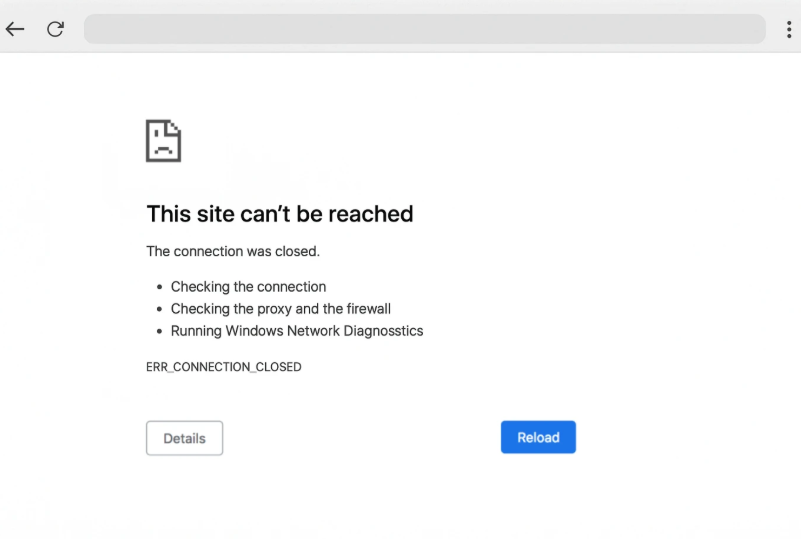
When browsing the internet, users sometimes face errors that prevent websites from loading properly. One of the most common issues is err_connection_timed_out, which appears when a browser cannot establish a connection with a website within the expected time.
This problem can happen because of many reasons, including slow internet connections, server issues, browser settings, security software, or network configuration problems. Understanding the cause makes it easier to find the right solution.
A timeout error does not always mean the website is unavailable. Sometimes the problem exists on the user’s device or network. By following the right troubleshooting methods, most connection problems can be resolved quickly.
What Causes Connection Timeout Errors
Slow or Unstable Internet Connection
A weak internet connection is one of the most common reasons websites fail to load. If your network speed drops or keeps disconnecting, your browser may not receive a response from the server in time.
Wi-Fi interference, router problems, or limited bandwidth can slow down communication between your device and the website. Testing your internet connection can help identify whether the issue is local or website-related.
Website Server Problems
Sometimes the website you are trying to visit is experiencing technical difficulties. A busy server, maintenance activity, or hosting issue may prevent users from accessing the page.
In this situation, the problem is not caused by your browser or device. Waiting for the server to recover is usually the only solution.
Browser Cache and Stored Data
Browsers save temporary files to improve loading speed. However, outdated or corrupted cache data can sometimes create connection problems.
Clearing browser cache and cookies regularly can remove stored information that may interfere with website access.
Firewall and Security Software Restrictions
Antivirus programs and firewalls protect devices from harmful online activity. However, incorrect settings can sometimes block safe websites.
Security tools may interrupt communication between your browser and a server, causing timeout-related errors.
How to Fix err_connection_timed_out Issues
Restart Your Internet Connection
A simple network restart can solve many temporary connection failures.
Turn off your router, wait briefly, and turn it back on. This allows your network equipment to refresh its connection with your internet provider.
You can also reconnect your device to Wi-Fi or switch between networks to check whether the problem continues.
Refresh the Website
Sometimes a website fails to respond because of a temporary communication issue. Reloading the page after a short wait can help establish a new connection.
Try opening another website as well. If other pages work correctly, the issue may be limited to the specific website.
Clear Browser Cache and Cookies
Removing old browsing data can improve browser performance and fix loading problems.
Open your browser settings, find privacy options, and clear cached files and cookies. After completing this process, restart the browser and try visiting the website again.
Disable Extensions Temporarily
Browser extensions can change how websites load. Some extensions may block scripts, advertisements, or network requests.
Disable extensions one by one to discover if a particular add-on is causing the connection problem.
Check Your DNS Settings
Use a Reliable DNS Server
The Domain Name System converts website addresses into server locations. If DNS settings are incorrect, your browser may struggle to connect.
Changing DNS settings to a trusted provider can improve reliability and resolve connection failures.
Flush DNS Cache
Your device stores DNS records to speed up future connections. Sometimes these records become outdated.
Flushing the DNS cache removes old information and forces your system to request updated details.
This process can help restore access to websites that are not loading correctly.
Check Firewall and Antivirus Settings
Review Security Rules
Security applications may accidentally block certain connections. Check your firewall settings and confirm that your browser has permission to access the internet.
Temporarily disabling security protection can help identify whether the software is causing the issue.
Always reactivate security tools after testing to keep your device protected.
Try a Different Browser
Test Website Compatibility
A browser-specific problem can sometimes prevent websites from opening.
Try accessing the same page using another browser. If the website works elsewhere, your original browser may require updates or configuration changes.
Keeping browsers updated ensures better compatibility with modern websites.
Restart Your Device
Refresh System Processes
Your computer or mobile device manages many background processes that affect internet access.
Restarting your device clears temporary system errors and reloads network settings. This simple step often resolves unexpected browsing problems.
Update Network Drivers
Improve Device Communication
Network drivers allow your device to communicate with routers and internet connections.
Outdated drivers may create performance issues or connection failures. Checking for available updates can improve network stability.
Disable Proxy Settings
Review Network Configuration
Proxy servers change how your device connects to websites. Incorrect proxy settings can interrupt communication.
If you do not need a proxy, disabling it may restore normal browsing access.
Check your device network settings and confirm everything is configured correctly.
Scan for Malware
Protect Your Internet Connection
Certain types of malware can affect browser behavior and network settings.
Running a complete security scan helps detect harmful programs that may interfere with internet access.
Keeping your operating system and security software updated reduces future risks.
Website Owner Solutions for Timeout Problems
Improve Server Performance
Website owners can also experience connection timeout issues. Slow hosting, heavy traffic, or poor server configuration can affect visitors.
Improving server resources, optimizing website files, and monitoring performance can create a faster experience.
Check Hosting Provider
A reliable hosting service plays an important role in website availability.
If timeout problems happen frequently, contacting the hosting provider can reveal server-side issues.
Prevent Future Connection Issues
Maintain Browser Health
Regular browser updates, cache cleaning, and extension management can prevent many browsing problems.
Avoid installing unnecessary extensions and keep important software updated.
Use a Stable Network
A dependable internet connection reduces the chances of loading failures.
Using quality networking equipment and keeping firmware updated can improve connection reliability.
Monitor Website Availability
For website owners, monitoring tools can identify server problems before they affect many visitors.
Regular checks help maintain uptime and improve user experience.
Conclusion
Connection timeout errors can interrupt browsing experiences, but they are usually caused by common issues that can be fixed with simple steps. Problems may come from internet connections, browser data, DNS settings, security software, or website servers. Checking each possible cause helps identify the right solution. Restarting devices, clearing cache, updating software, and reviewing network settings are effective ways to restore access. Website owners can also improve performance by maintaining reliable hosting and optimized systems. Understanding how connection problems work allows users to browse more smoothly and handle future errors with confidence. Regular maintenance remains the best way to avoid repeated connection difficulties.